Bypass the Print Dialog Box in Firefox (Silent Printing)
Background
Prior to Firefox Quantum (2019 release), Firefox had a plugin to allow websites to streamline printing without extra dialog boxes and additional pop-ups. Firefox still has the seamless printing functionality, but it no longer allows web sites to access it. The user must manually make the change to enable it. This is how to do it.
If you require advanced printing functionality, which was provided by the jsPrint plugin that is no longer available in Firefox Quantum, you can install Firefox ESR edition, which supports the seamless printing plugin, and will not be upgraded to Quantum. If you decide to go this route, you can disregard instructions below.
Step 1
Print a test a label from Firefox. Pick the correct printer, set the right paper size, margins, and any other print settings for the label to print correctly. Firefox will use the settings from the last printed item for its automatic settings.
Step 2
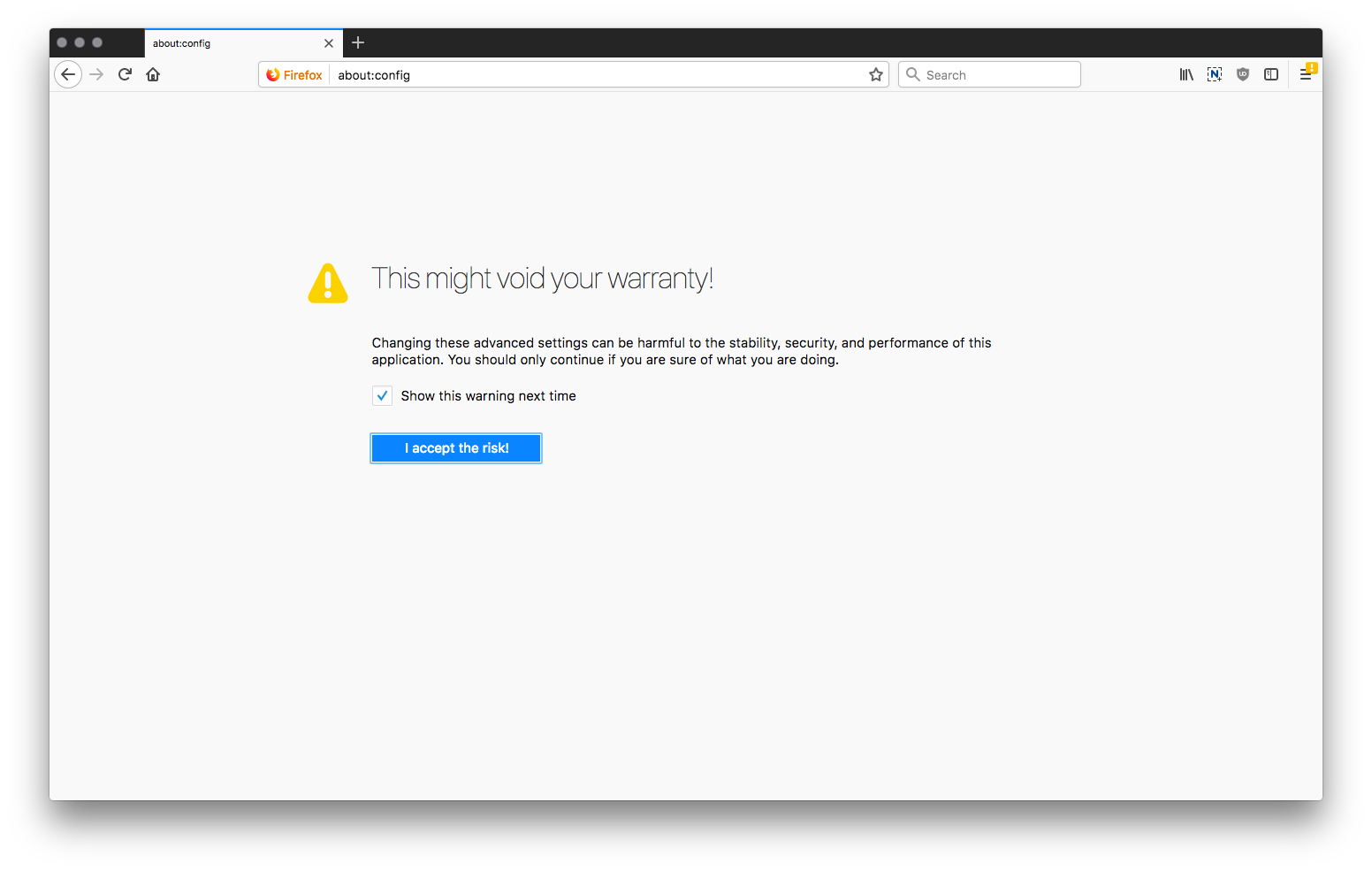
Open Firefox and type 'about:config' in the address bar and press enter. Click to confirm you know what you’re doing.
Step 3
At the top of the page, enter 'print.always_print_silent' into the search bar (no quotes).
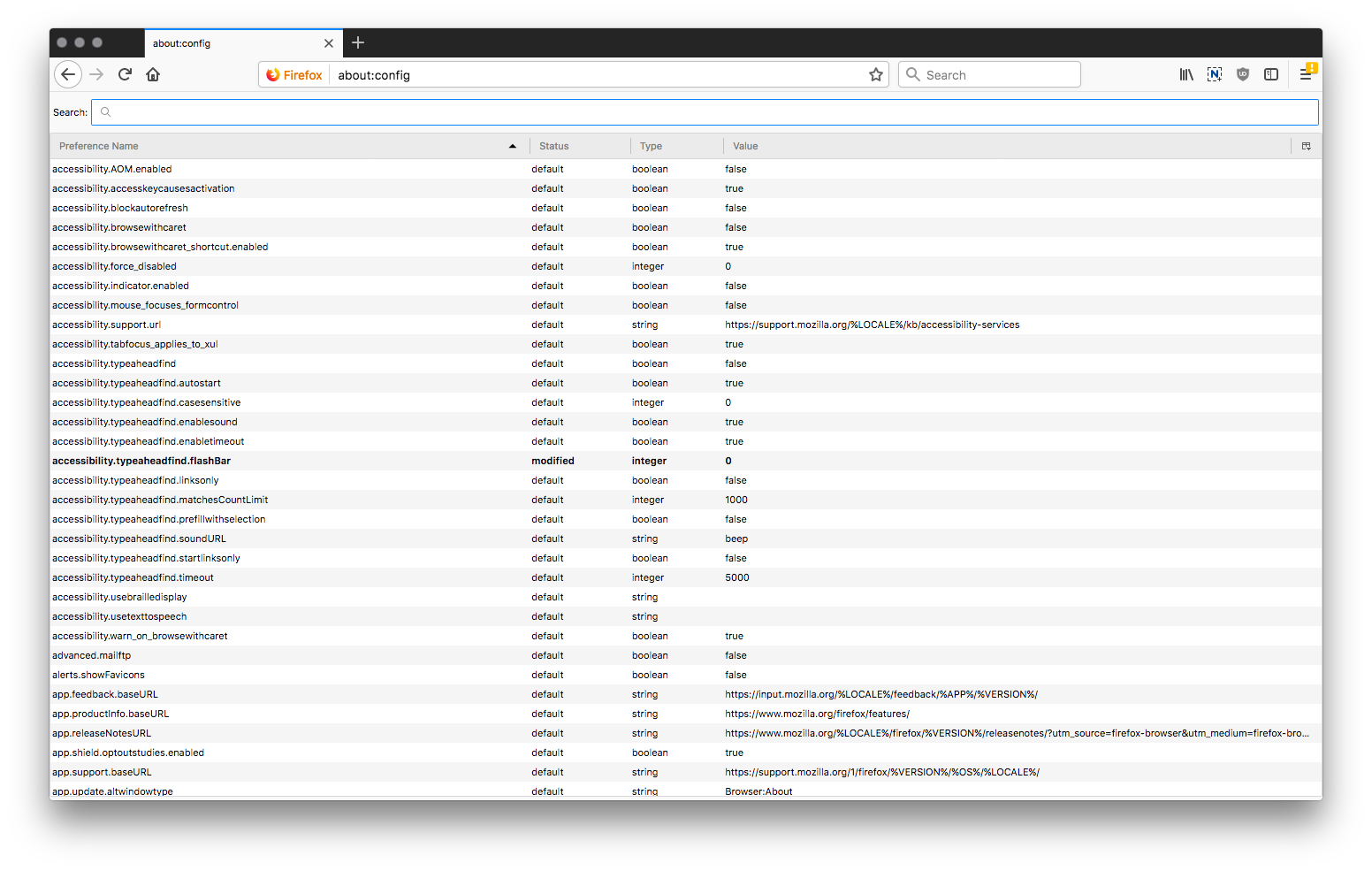
If you do not see anything appear, you will need to create a new entry. Right click anywhere on the page and selecting New > Boolean from the menu. In the popup enter print.always_print_silent as the preference name and then select True.
If after you searched for print.always_print_silent you do find the setting, right click on the value, and chose "Toggle" to set it to True.
Step 4
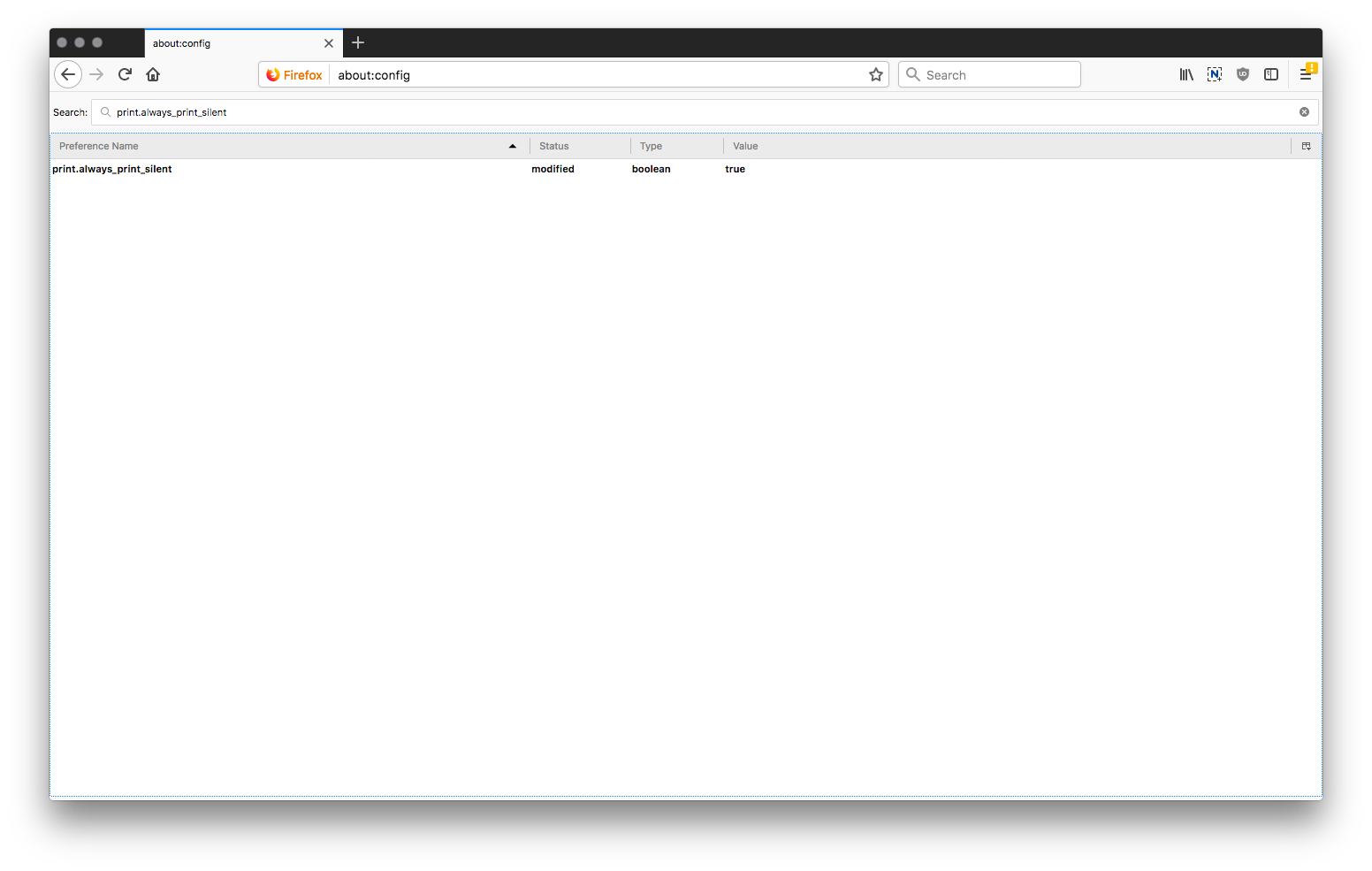
This is what the completed setting should look like:
Step 5 (Optional)
You can also create/set print.show_print_progress to False. This will hide the "Print Status" pop-up that pops up and disappears when an item is printing.